IPA365 Flashcards tutorial
A guide to studying IPA symbols with IPA365 Flashcards
IPA365 Flashcards is an interactive tool for practising IPA symbols, their labels, pronunciation and examples. The full demo below walks through the complete workflow; the chapter guides then explain each feature in text, with a short silent GIF for readers who want to inspect a particular action.
The full demonstration is silent; the instructions are provided in the written guide below and in the captions embedded in the recording.
1. Changing the category
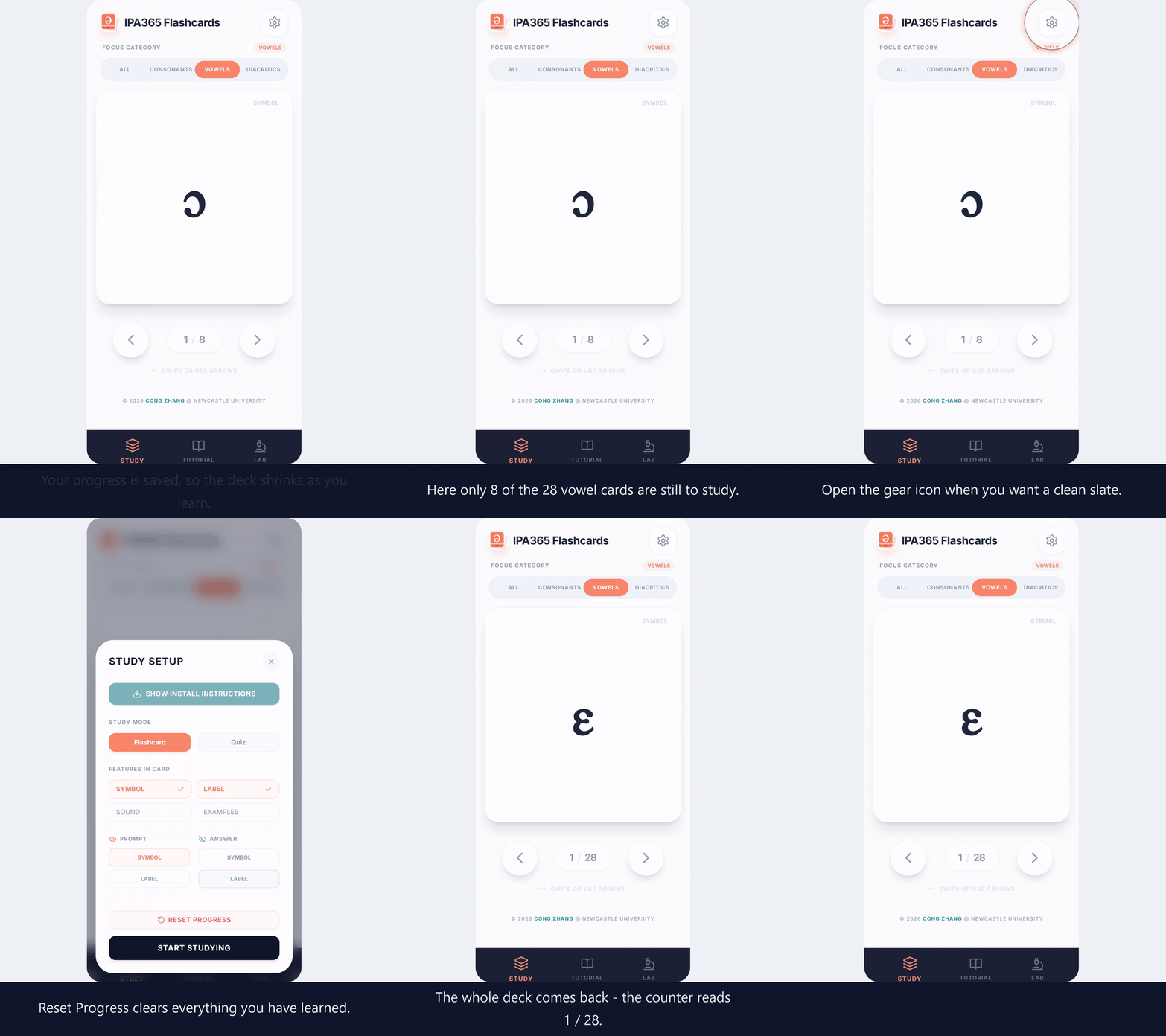
The Study tab opens with the full IPA deck. Use the FOCUS CATEGORY controls to narrow it to ALL, CONSONANTS, VOWELS or DIACRITICS. Choosing a category rebuilds the deck around the sounds you want to practise; choose ALL IPA whenever you want to return to the complete set.
2. Features in Card
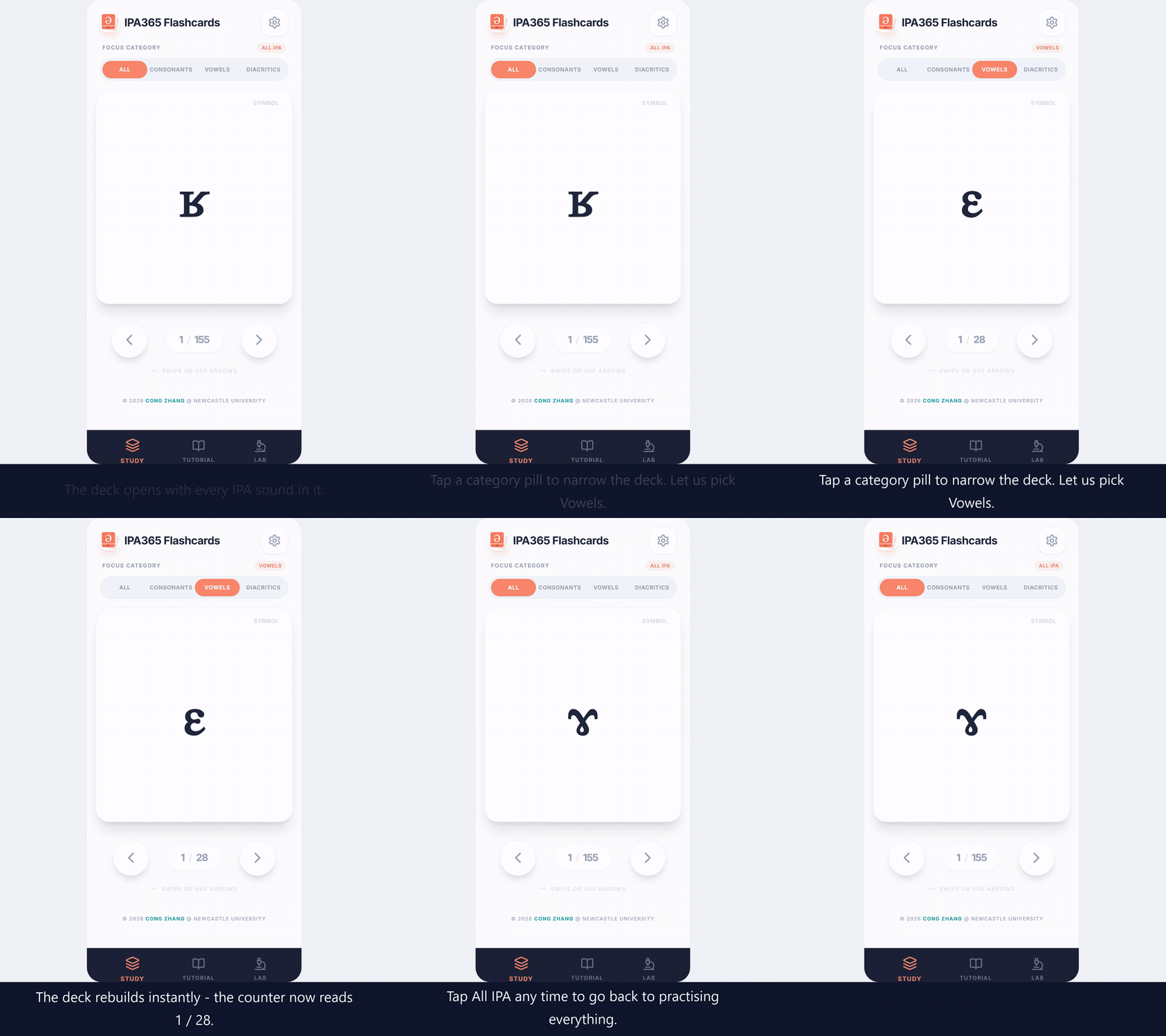
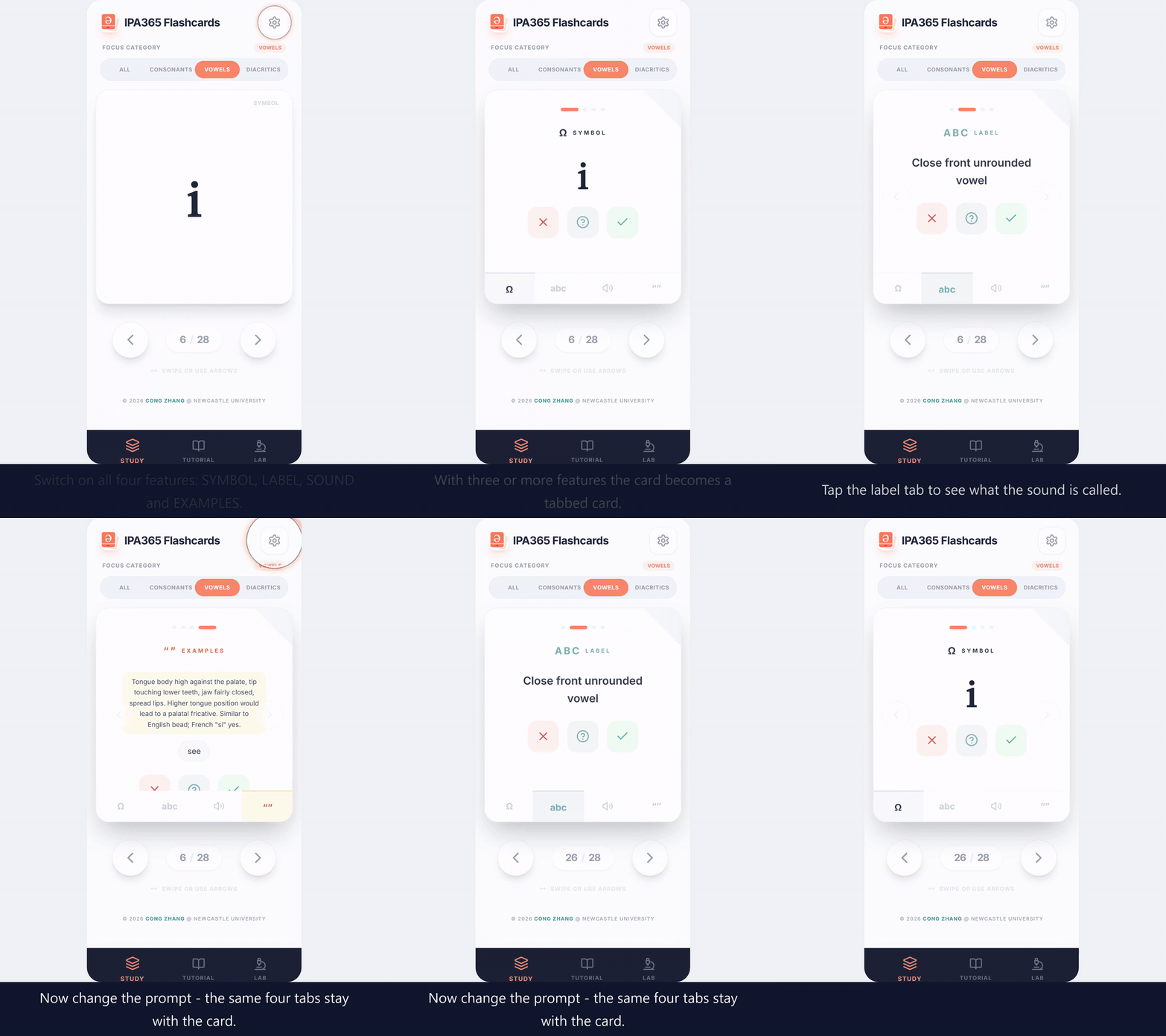
Open the gear icon to open Study Setup. Under Features in Card, choose which information appears on each card: SYMBOL, LABEL, SOUND and EXAMPLES. After choosing the features, select Start Studying. In Flashcard mode, the front presents the prompt; turn the card over to see the answer and use NO, MAYBE or YES to grade yourself.
3. Changing the prompt
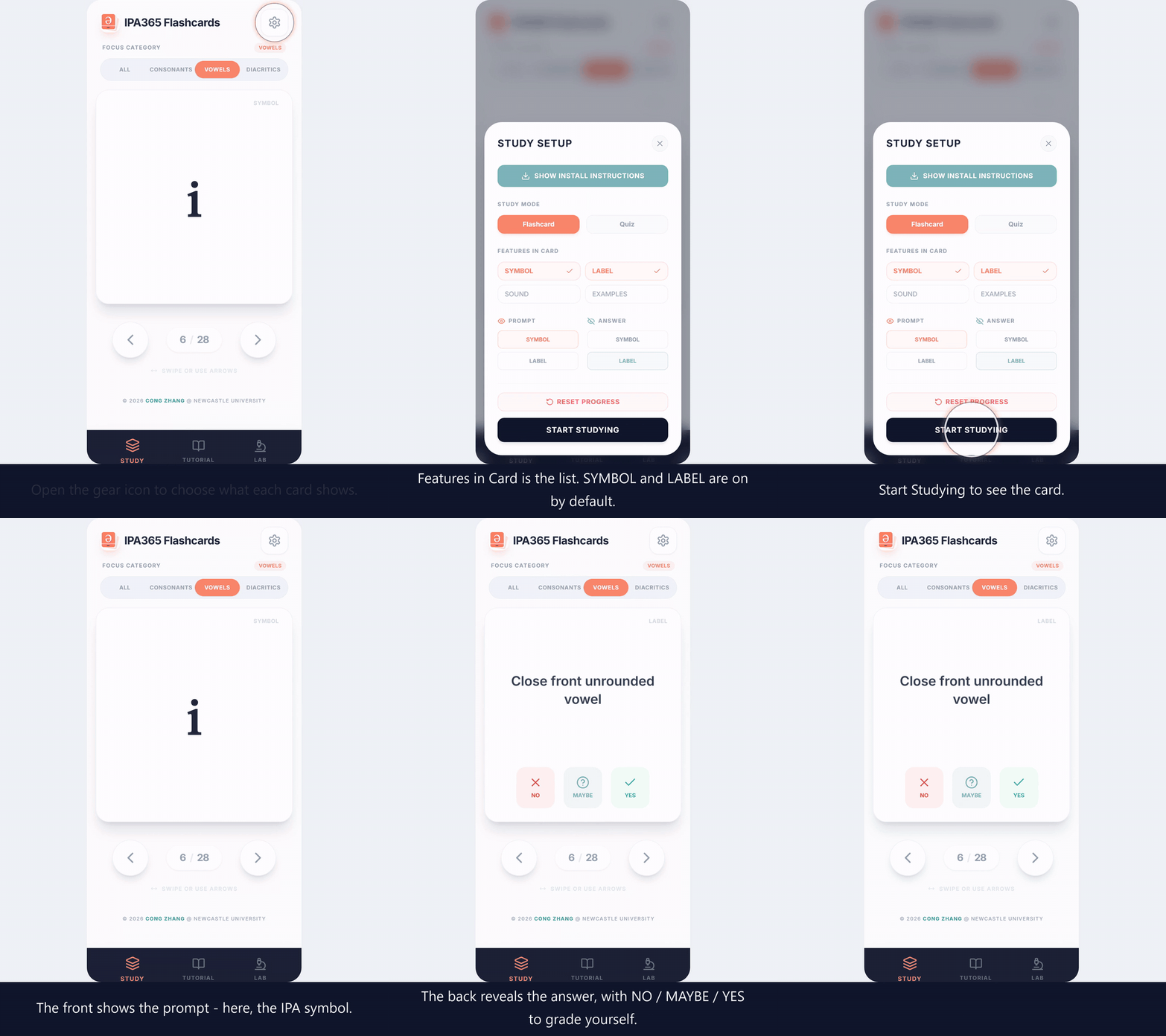
The prompt determines what you must recall first. By default, the IPA SYMBOL is shown as the prompt and the LABEL is the answer. In Study Setup, change the Prompt row to LABEL when you want to read a phonetic description and recall its symbol instead. The card and its selected features stay the same; only the direction of recall changes.
4. Tabbed cards
When three or more features are enabled, the Flashcard becomes a tabbed card rather than a single crowded view. Each feature gets its own tab: use the label tab to read the name, the speaker tab to hear the sound, and the examples tab for a pronunciation tip and a real word. The prompt can still be changed in Study Setup, while all of the feature tabs remain available on the card.
5. Quiz mode and full stars
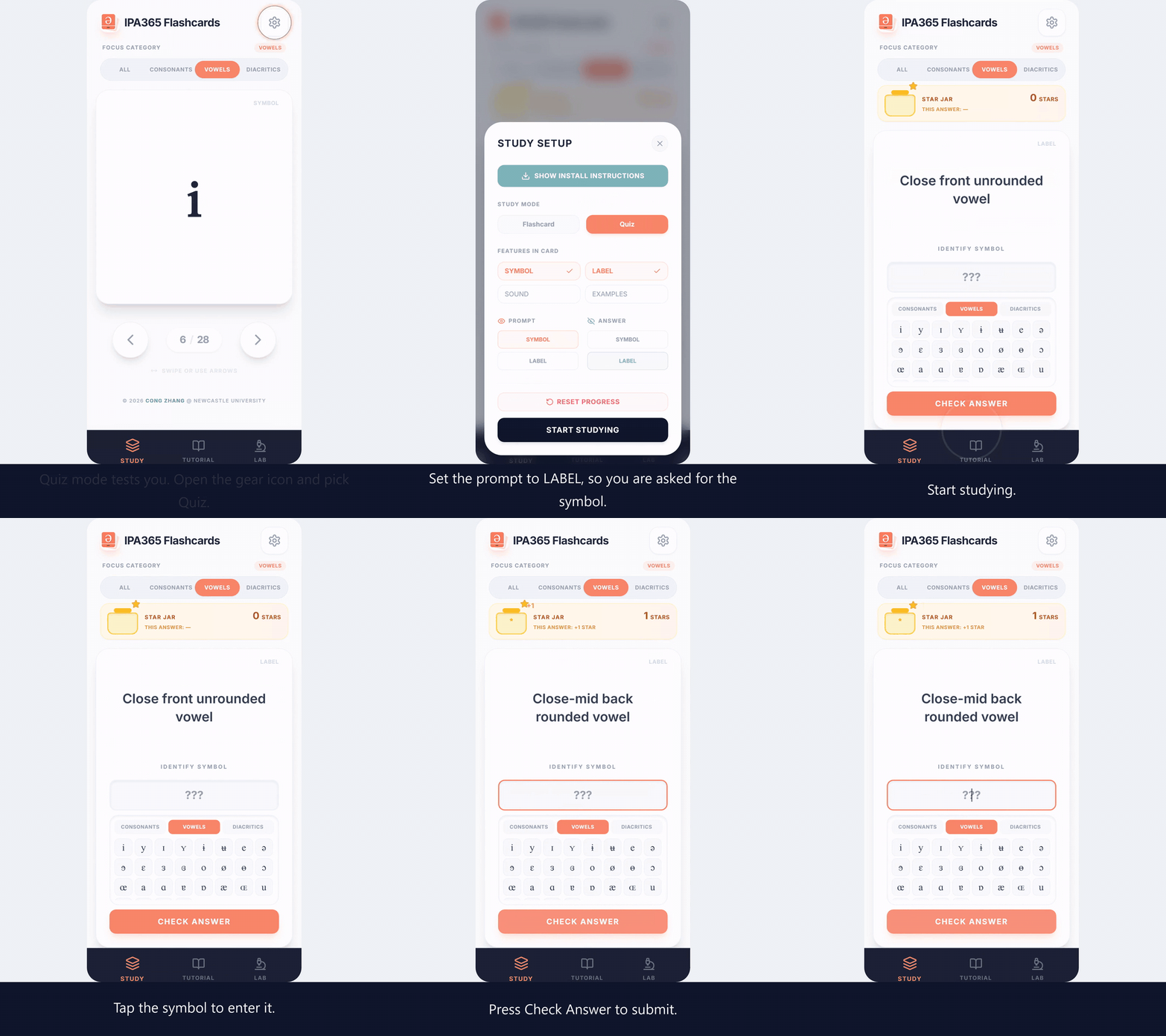
Choose Quiz in the Study Mode row when you want to answer before seeing the solution. For example, set the prompt to LABEL and use the IPA keyboard to enter the matching symbol. Submit the answer with CHECK ANSWER. A completely correct response earns a full star in the STAR JAR.
6. Half stars
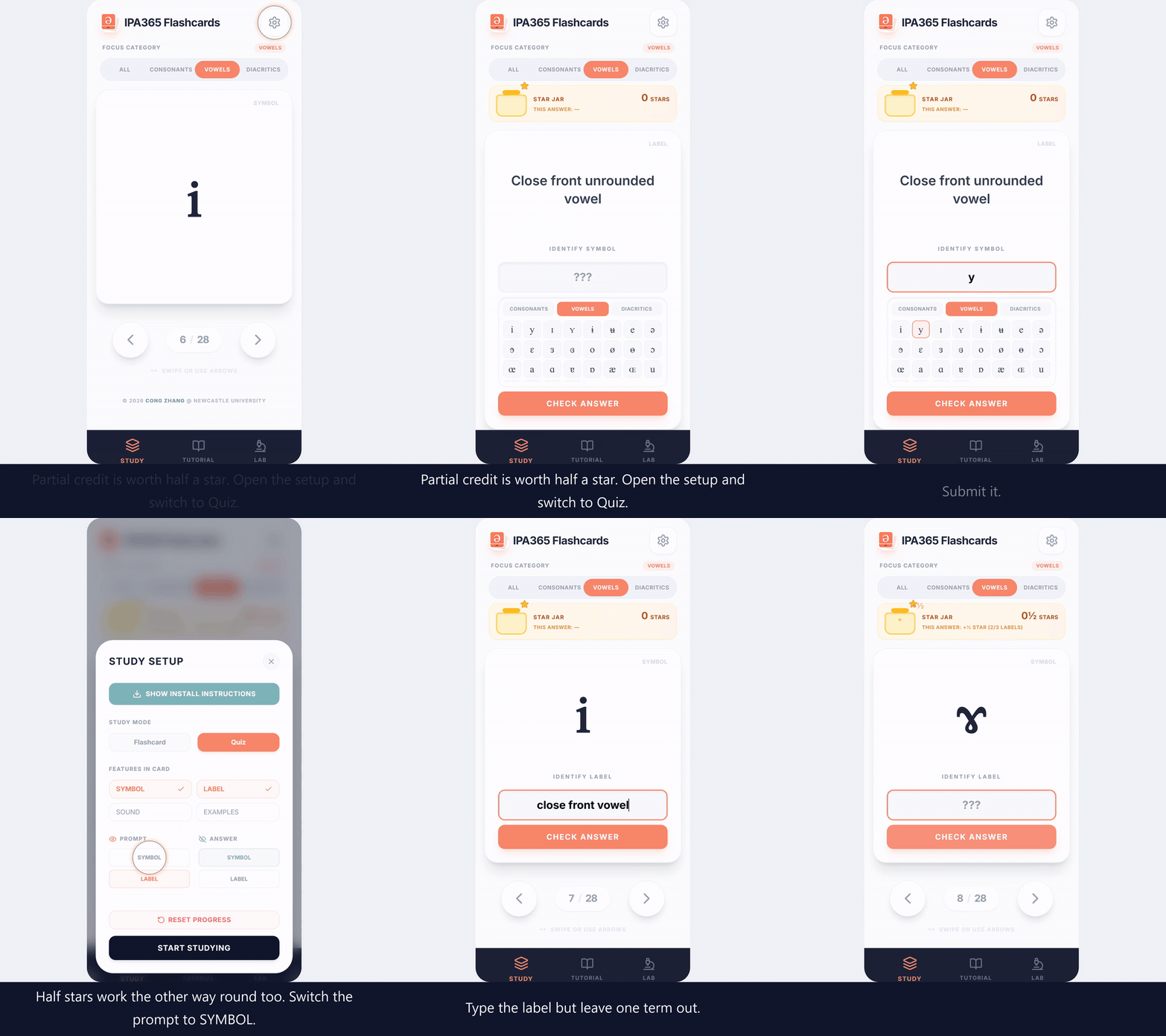
Quiz answers can also earn partial credit. Many labels contain three descriptive terms, such as close front unrounded vowel. Matching two of those terms earns half a star, whether you answer with a sound that shares two terms or provide a label that is missing one term. This gives useful feedback while still showing which part of the description needs more practice.
7. Flashcard grading and the deck
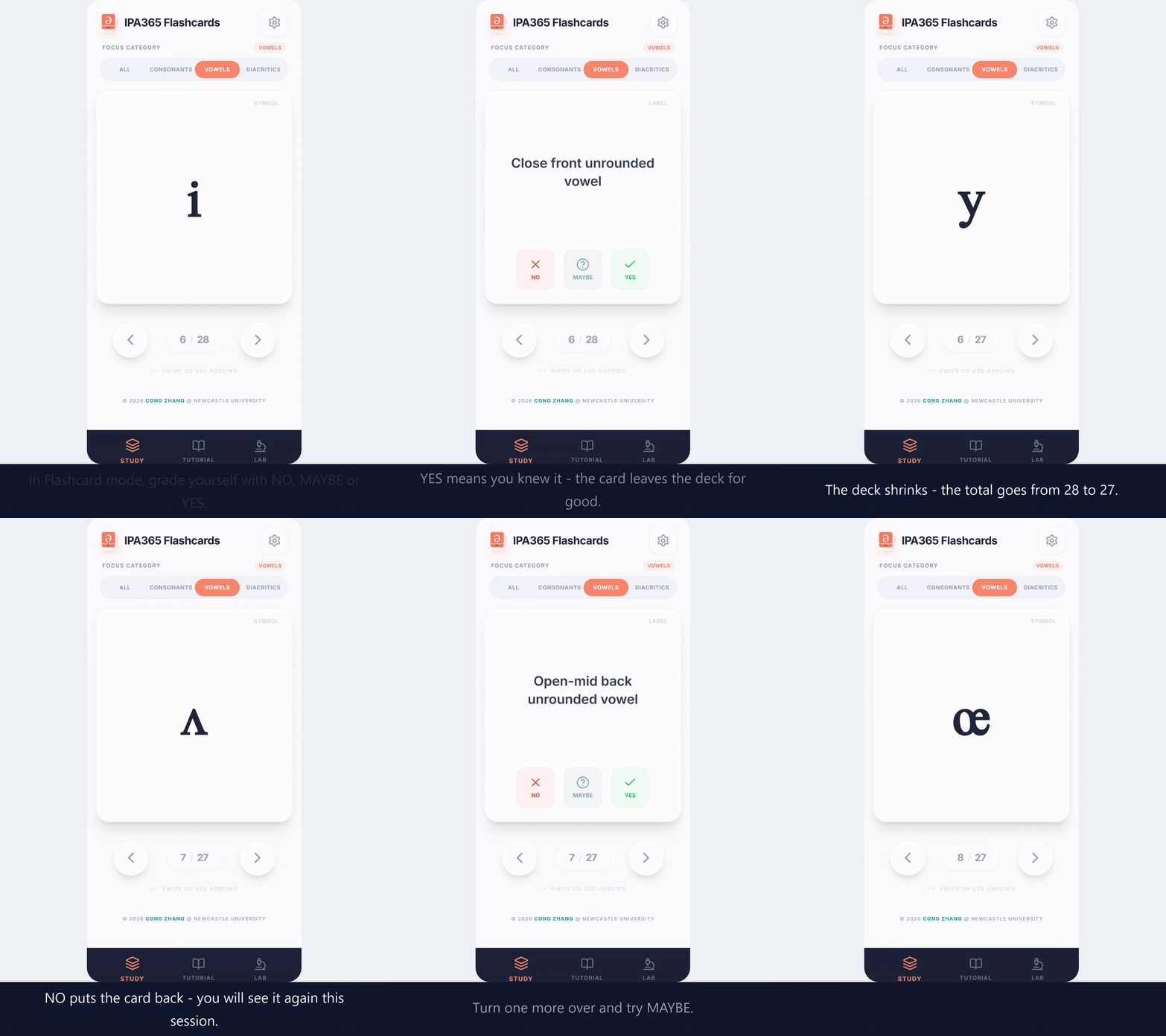
In Flashcard mode, turn the card over before grading yourself. Choose YES when you knew the answer; that card leaves the deck for the current session. Choose NO or MAYBE when you need to see it again. The deck counter shows this progress as the remaining cards become a smaller, more focused set.
8. Installing the app
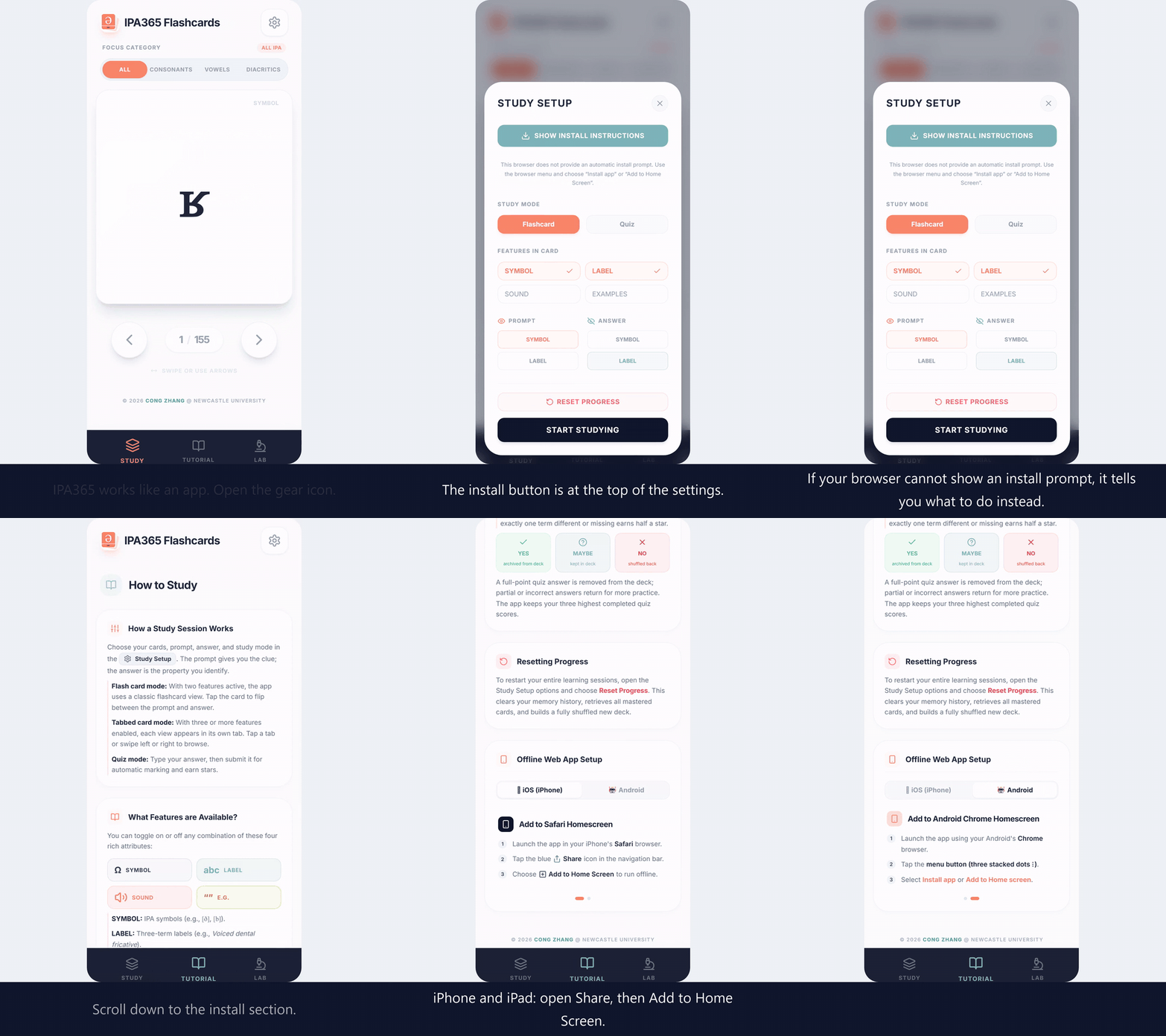
IPA365 works like an app and can be added to your home screen. Open the gear icon and look for the install option at the top of Study Setup. If your browser cannot offer a native install prompt, open the Tutorial tab for device-specific instructions: on iPhone or iPad use Share and Add to Home Screen; on Android use the browser menu and Install app.
9. Completing a session
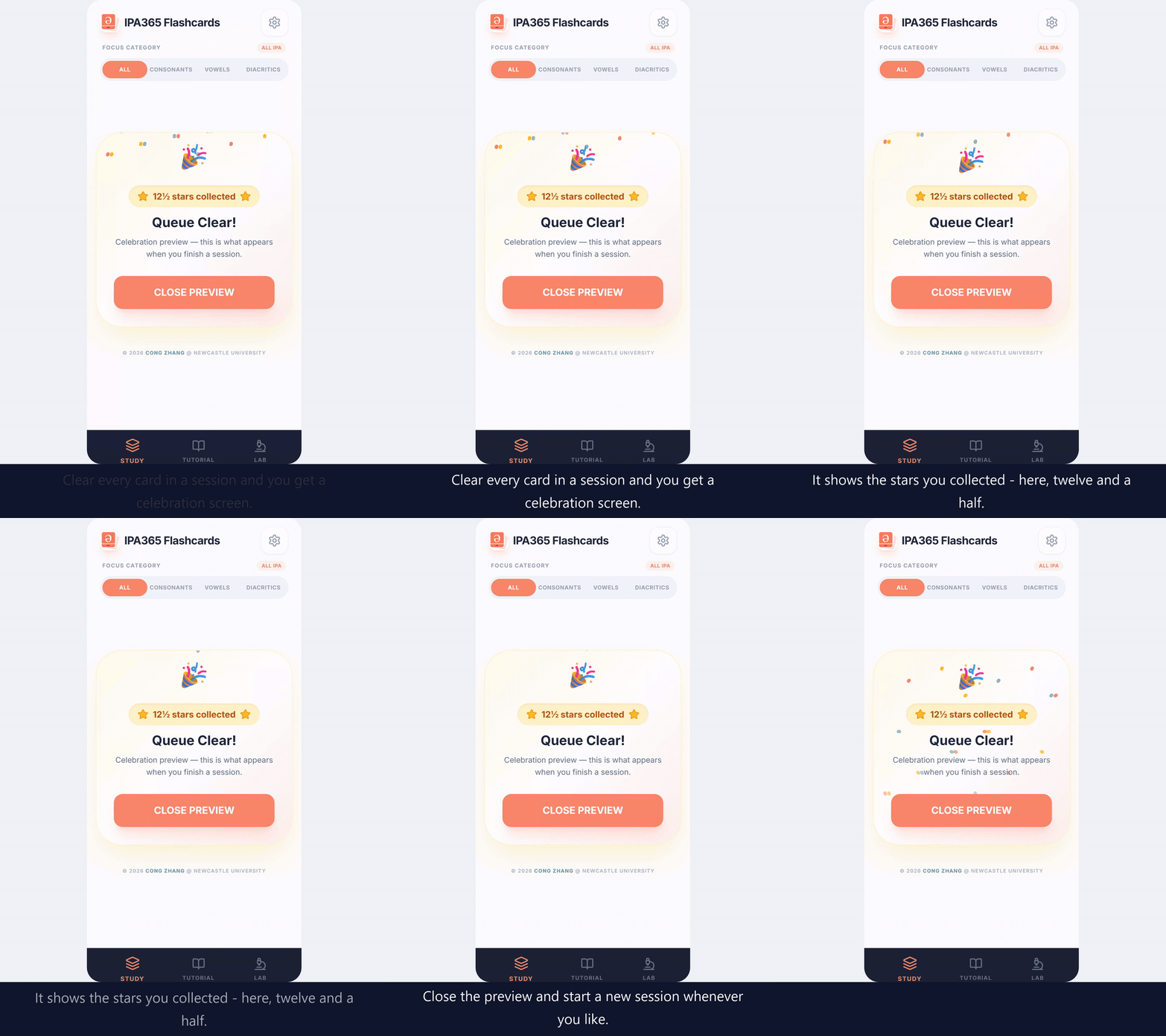
Clear every card in a study session to reach the Queue Clear! celebration screen. It shows the stars collected during that session, including any half stars from partially correct quiz answers. Close the preview when you are ready to start another session.
10. Resetting progress
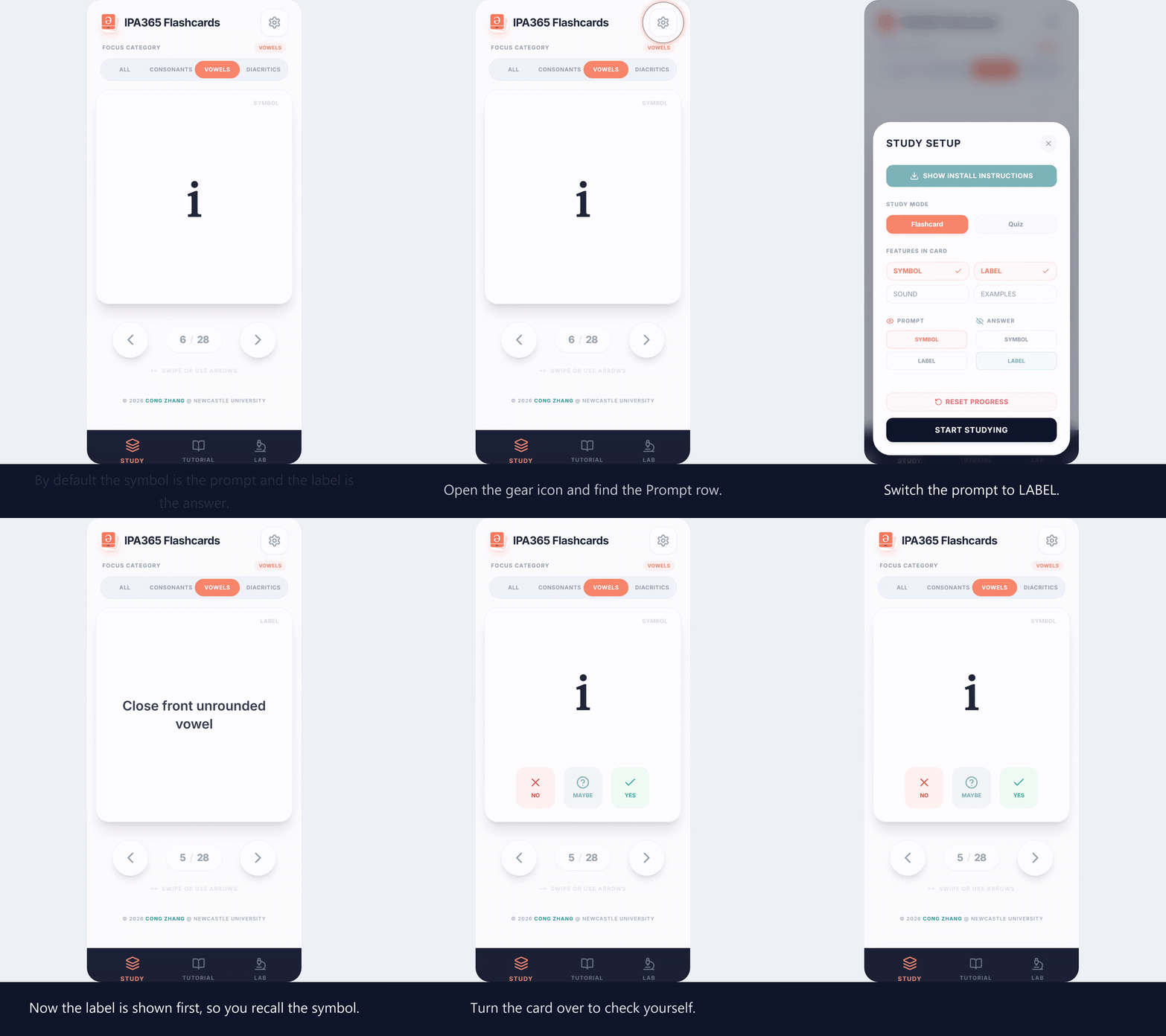
Your progress is saved, so cards you have successfully learned leave the active deck. To start over, open the gear icon and choose Reset Progress. This restores the learned cards and brings the deck back to its starting state, ready for a fresh study session.